Matplotlib display error on standalone tkinter GUI

Hello,

I have created a GUI using Tkinter (on a Windows 11 PC) that includes a mataplotlib graph, and when I run it from Python Spyder it compiles and runs correctly. However, if I run this GUI by double clicking the py file (not running inside Spyder), the GUI will partly display the graph, and then the GUI will crash and close down.

When the GUI runs, the graph displays and is updated every 10 seconds when the function power_meter_graph function is called - I think Spyder must be masking a coding error or something. Below are the key snippets of my code:

Can you see any obvious code errors?

Many thanks in advance,

Tuurbo46

import matplotlib.pyplot as plt
from matplotlib.backends.backend_tkagg import(FigureCanvasTkAgg)
from matplotlib.figure import Figure


root = tk.Tk()
fig_2, ax = plt.subplots(1, 1, figsize=(4, 3))


#---- pwrmeter label ----
lbl_6 = ttk.LabelFrame(tab2, text = "POWER METER")
lbl_6.grid(column=1, row=1, padx=20, pady=20, sticky='n')

#---- draw graph ----
canvas_2 = FigureCanvasTkAgg(fig_2, lbl_6)
canvas_2.get_tk_widget().grid_forget()
canvas_2.get_tk_widget().grid(column=0, row=0, padx=20, pady=20, columnspan=1, rowspan=1)


def power_meter_graph():
     
    ccdf_table = pwrmeter_n1912a.read_n1912a_channel_a_ccdf_table()
       
    ccdf_table_2 = np.fromstring(ccdf_table, sep=',')

    x_values = np.array([ccdf_table_2[8], ccdf_table_2[7], ccdf_table_2[6],
                        ccdf_table_2[5], ccdf_table_2[4], ccdf_table_2[3]])

    y_values = np.array([0.0001, 0.001, 0.01, 0.1, 1, 10]) # %
    
   
    plt.yscale('log')
    plt.ylabel("%")
    plt.xlabel("dB")

     
    plt.plot(x_values, y_values)
    plt.show()
Where is this name defined?

Hello James,

I have an external file called ‘pwrmeter_n1912a.py’.

This command calls the function ‘read_n1912a_channel_a_ccdf_table()’ in the pwrmeter_n1912a.py file.

The problem seems to be in the below code. Because when i comment it out, the GUI boots up and does’nt crash:

#---- draw graph ----
canvas_2 = FigureCanvasTkAgg(fig_2, lbl_6)
canvas_2.get_tk_widget().grid_forget()
canvas_2.get_tk_widget().grid(column=0, row=0, padx=20, pady=20, columnspan=1, rowspan=1)

Thanks,

Tuurbo46

This is to be expected. Clicking on a .py Python file will not run the file. You have to run it from an IDE. Else, what you can do is run it from the CMD prompt.

Regarding your original posted script, it appears that it has to do with the reference to the variable tab2. Replace it with the keyword root.

import matplotlib.pyplot as plt
from matplotlib.backends.backend_tkagg import FigureCanvasTkAgg
from matplotlib.figure import Figure
from tkinter import ttk
import tkinter as tk
import numpy as np


root = tk.Tk()
fig_2, ax = plt.subplots(1, 1, figsize=(4, 3))


#---- pwrmeter label ----
lbl_6 = ttk.LabelFrame(root, text = "POWER METER")
lbl_6.grid(column=1, row=1, padx=20, pady=20, sticky='n')

#---- draw graph ----
canvas_2 = FigureCanvasTkAgg(fig_2, lbl_6)
canvas_2.get_tk_widget().grid_forget()
canvas_2.get_tk_widget().grid(column=0, row=0, padx=20, pady=20, columnspan=1, rowspan=1)


def power_meter_graph():
     
    ccdf_table = pwrmeter_n1912a.read_n1912a_channel_a_ccdf_table()
       
    ccdf_table_2 = np.fromstring(ccdf_table, sep=',')

    x_values = np.array([ccdf_table_2[8], ccdf_table_2[7], ccdf_table_2[6],
                        ccdf_table_2[5], ccdf_table_2[4], ccdf_table_2[3]])

    y_values = np.array([0.0001, 0.001, 0.01, 0.1, 1, 10]) # %
    
   
    plt.yscale('log')
    plt.ylabel("%")
    plt.xlabel("dB")

     
    plt.plot(x_values, y_values)
    plt.show()
     

##power_meter_graph()

Note that I removed the parantheses from FigureCanvasTkAgg. I don’t see the reason for including them.

Hello onePythonUser,

Thanks for your input.

I have tab2 because I have two pages (tabs) on my GUI. So am I correct in understanding tab1 is (root, page1) and if I swap tab2 to root, my graph will appear on page1?

Cheers,

Tuurbo46

Grand. Where is it imported in the code that errors?

Unable to say since we aren’t shown precisely how you have written your code. You’re providing a general description of your approach but without actually seeing/analyzing the script it would be premature to provide you with usable feedback.

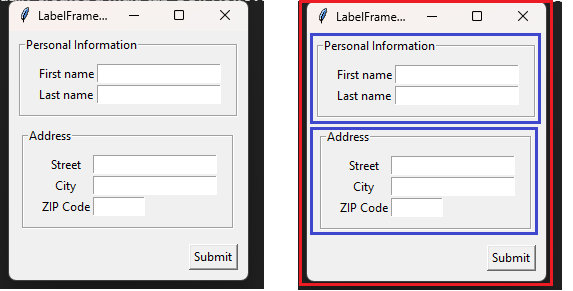
I have actually created a multi-tab GUI. However, my approach was using classes. From the following figure as an example (not the GUI, using for explanation purposes is all), the red box encompasses “root = tk.Tk()”, the main window. Then, what you’re doing is adding two labelframes via “ttk.LabelFrame(root, ...)” (titled Personal Information and Address, respectively). The “root” in the labelframe configuration implies that the two labelframes are to be attached to the root window. I don’t see where you have defined in code the ‘tab’ sub windows to attach the labelframes to at least from the script that you have provided.

My approach to creating a multi-tab GUI was using the ttk.notebook library. Is this your approach? The idea is to create each tab as a class (preferrably with its own file). Then, use the ttk.notebook as the library class that brings all the tabs under one window application.
.
The following script is actual code for an app that I created for a multi-tab GUI.

class LabelApp(tk.Tk):

    def __init__(self, *args, **kwargs):

        super().__init__(*args, **kwargs)

        self.title("Your Company Name Here- Packaging Labels GUI App")
        self.notebook = ttk.Notebook()

        # Apply company logo to title bar icon
        pi = tk.PhotoImage(file=paths['icon'])
        self.iconphoto(False, pi)

        # Case Product ID Label - Add tab to top level window
        self.product_id_label = ProductIdLabelGui(self.notebook)
        self.notebook.add(self.product_id_label, text="Vendor Pack Product ID Label", padding=10)

        # Shipping Label - Add tab to top level window
        self.shipping_label = ShippingLabelGui(self.notebook)
        self.notebook.add(self.shipping_label, text="Shipping Label", padding=10)

        # Search Record - Add tab to top level window
        self.record_search = RecordFind(self.notebook)
        self.notebook.add(self.record_search, text="Search Shipping Label Record", padding=10)

        self.notebook.pack()#padx=10, pady=20, fill=tk.BOTH)

In the script, we define the notebook (multi-tab object). We then add one tab at a time in subsequent lines of code. For example, the ProductIdLabelGui is a class defined in another file that corresponds to a specific tab that I created. I then add it as its own tab sub-window with these two lines:

self.product_id_label = ProductIdLabelGui(self.notebook)
self.notebook.add(self.product_id_label, text="Vendor Pack Product ID Label", padding=10)

Here is a partial screenshot of the GUI app. Note that it has three tabs.

Hello,

Thanks for your reply.

I come from a C background so I have written the whole program in a procedural style with no OOP - everything is a flat out rush, so not time to review my old OOP notes :-).

Thanks,

Tuurbo46

In classes, self refers to the class object that the labelframes or any GUI widget is binded to. For procedural programming, it would be the root or whatever alias you have given it when creating the window via this line:

root = tk.Tk()

By the way, you can get access to the notebook widget tools via:

from tkinter import ttk

Here is a tutorial that may be of some help:

Also keep in mind that the process is hierarchical. Meaning that you will have to first create the root window (or as stated previously, whatever other name that you wish to give it). Then, the tab widgets will have to make reference to the root when adding them during configuration. Later, when creating the labelframes, they in turn will have to reference the tab widget objects and not the root. That is, you bind the tab widgets to the root and the labelframes to the tab widgets. This is how you assign which labelframes (or other widgets that you are adding, be they entries, graphs, tables, etc.) are to be assigned to which tabs.