Plot & Button using Grid in tkinter

This works to place a Plot with a button below, as written. However…

# 1. Importing Necessary Libraries:
import tkinter as tk
from matplotlib.figure import Figure
from matplotlib.backends.backend_tkagg import FigureCanvasTkAgg, NavigationToolbar2Tk
import numpy as np

# 2. Creating the Tkinter Window and Plot Function:
def plot_data():
    # Create a Matplotlib Figure
    fig = Figure(figsize=(6, 4), dpi=100)
    ax = fig.add_subplot(111)

    # Generate some data to plot
    x = np.linspace(0, 2 * np.pi, 100)
    y = np.sin(x)

    # Plot the data
    ax.plot(x, y)
    ax.set_title("Sine Wave Plot")
    ax.set_xlabel("X-axis")
    ax.set_ylabel("Y-axis")

    # Embed the Matplotlib plot into the Tkinter window
    canvas = FigureCanvasTkAgg(fig, master=root)
    canvas.draw()
    canvas.get_tk_widget().pack(side=tk.TOP, fill=tk.BOTH, expand=1)

    # Add Matplotlib's navigation toolbar
    toolbar = NavigationToolbar2Tk(canvas, root)
    toolbar.update()
    canvas.get_tk_widget().pack(side=tk.TOP, fill=tk.BOTH, expand=1)

# Create the main Tkinter window
root = tk.Tk()
root.title("Plot and Button Example")
root.geometry("800x600")

plot_data()

# 3. Adding a Button to Trigger the Plot:
# Create a button to trigger the plot
plot_button = tk.Button(master=root, text="Do Something")
plot_button.pack(pady=10)

# Start the Tkinter event loop
root.mainloop()

However I used Grid to place multiple widgets in my program.
I get the following error if I use Grid instead of pack in the above.

Apparently backend tk.py, in line 675, calls pack (I think). Pack and Grid are not compatible.
Place is compatible with Pack so I could try Place Relative to replace Grid.
I am using “Modern Tkinter for Busy Python Developers” by Mark Roseman. It has a chapter on Grid Geometry Manager but barely mentions Pack and Place.
Am I correct in my assessment?
There is a thread “Button Placement Using ‘grid’ via tkinter” that has a similar problem and the solution was not to use Grid.

I’ve just run the code in Python 13 and it runs without an error.

Yes, I said it did. Did you try changing Pack to Grid throughout?

# 1. Importing Necessary Libraries:
import tkinter as tk
from matplotlib.figure import Figure
from matplotlib.backends.backend_tkagg import FigureCanvasTkAgg, NavigationToolbar2Tk
import numpy as np

# 2. Creating the Tkinter Window and Plot Function:
def plot_data():
    # Create a Matplotlib Figure
    fig = Figure(figsize=(6, 4), dpi=100)
    ax = fig.add_subplot(111)

    # Generate some data to plot
    x = np.linspace(0, 2 * np.pi, 100)
    y = np.sin(x)

    # Plot the data
    ax.plot(x, y)
    ax.set_title("Sine Wave Plot")
    ax.set_xlabel("X-axis")
    ax.set_ylabel("Y-axis")

    # Embed the Matplotlib plot into the Tkinter window
    canvas = FigureCanvasTkAgg(fig, master=root)
    canvas.draw()
    canvas.get_tk_widget().grid(row=0)

    # Add Matplotlib's navigation toolbar
    toolbar = NavigationToolbar2Tk(canvas, root)
    toolbar.update()
    canvas.get_tk_widget().grid(row=1)

# Create the main Tkinter window
root = tk.Tk()
root.title("Plot and Button Example")
root.geometry("800x600")
plot_data()

# 3. Adding a Button to Trigger the Plot:
# Create a button to trigger the plot
plot_button = tk.Button(master=root, text="Do Something")
plot_button.grid(row=1, pady=10)

# Start the Tkinter event loop
root.mainloop()

I tried Place Relative and it works well. Am I correct in saying Grid is not compatible with NavigationToolbar2Tk?

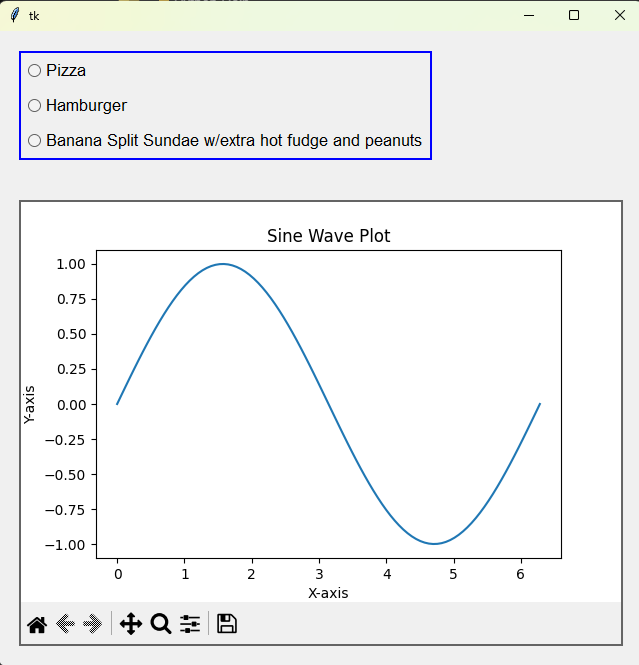
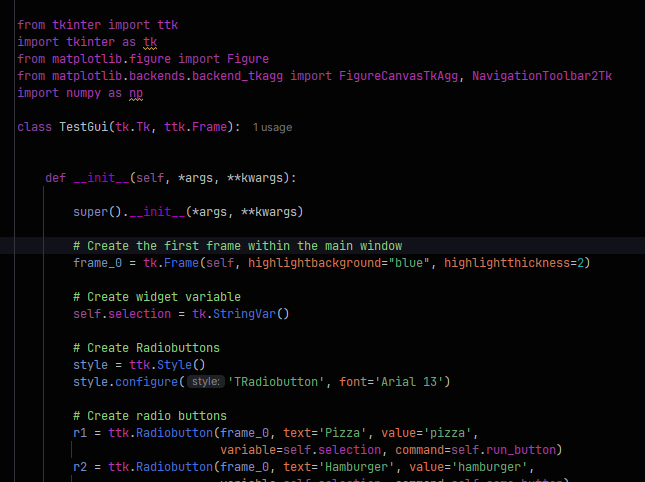
Here is a test GUI that I created along with adding your plot. As I stated before, you have to associate the plot to the frame in question. In this example, I created two frames. The first is a miscelleneous frame where I added two test radiobuttons. The second frame is used for the plot that you created. Note that in your test script, you had master=root. From your script, root is equal to the main top window (tk.TK()). In this test code, to associate it to the frame, we modified it to: master=frame_1. Thus, the plot will be graphed inside the frame and not the main window.

I created the test script using a class but can easily be applied to your non-class approach as well.


from tkinter import ttk
import tkinter as tk
from matplotlib.figure import Figure
from matplotlib.backends.backend_tkagg import FigureCanvasTkAgg, NavigationToolbar2Tk
import numpy as np

class TestGui(tk.Tk, ttk.Frame):


    def __init__(self, *args, **kwargs):

        super().__init__(*args, **kwargs)

        # Create the first frame within the main window
        frame_0 = tk.Frame(self, highlightbackground="blue", highlightthickness=2)

        # Create widget variable
        self.selection = tk.StringVar()

        # Create Radiobuttons
        style = ttk.Style()
        style.configure('TRadiobutton', font='Arial 13')

        # Create radio buttons
        r1 = ttk.Radiobutton(frame_0, text='Pizza', value='pizza',
                             variable=self.selection, command=self.run_button)
        r2 = ttk.Radiobutton(frame_0, text='Hamburger', value='hamburger',
                             variable=self.selection, command=self.some_button)
        r3 = ttk.Radiobutton(frame_0, text='Banana Split Sundae w/extra hot fudge and peanuts', value='sudae',
                             variable=self.selection, command=self.other_button)

        radio_buttons = [r1, r2, r3]

        # pack radio buttons inside frame_1
        for radio in radio_buttons:
            radio.pack(fill='x', padx=5, pady=5)

        frame_0.grid(row=0, column=0, padx=20, pady=20, sticky=tk.W + tk.N)

        # Create the second frame within the main window
        frame_1 = tk.Frame(self, highlightbackground="blue", highlightthickness=2)

        fig = Figure(figsize=(6, 4), dpi=100)
        ax = fig.add_subplot(111)

        # Generate some data to plot
        x = np.linspace(0, 2 * np.pi, 100)
        y = np.sin(x)

        # Plot the data
        ax.plot(x, y)
        ax.set_title("Sine Wave Plot")
        ax.set_xlabel("X-axis")
        ax.set_ylabel("Y-axis")

        # Embed the Matplotlib plot into the Tkinter window
        canvas = FigureCanvasTkAgg(fig, master=frame_1)
        canvas.draw()
        canvas.get_tk_widget().pack(side=tk.TOP, fill=tk.BOTH, expand=1)

        # Add Matplotlib's navigation toolbar
        toolbar = NavigationToolbar2Tk(canvas, frame_1)
        toolbar.update()
        canvas.get_tk_widget().pack(side=tk.TOP, fill=tk.BOTH, expand=1)

        frame_1.grid(row=1, column=0, padx=20, pady=20, sticky=tk.W + tk.N)


    def run_button(self):
        print('Selected pizza.')

    def some_button(self):
        print('Selected a hamburger.')

    def other_button(self):
        print('Selected a banana split sundae.')

app = TestGui()
app.mainloop()

You can probably copy and paste the code beginning from frame_1 = tk.Frame(self, ... to frame_1.grid(row=1, .... Just replace self withroot.

Thanks Paul; more useful stuff, however I tried running your code and got the same complaint about Grid. I’m running Thonny on a Win11.

This thread was intended to see if there is a bug in using Grid with Matplotlib and the figure canvas.
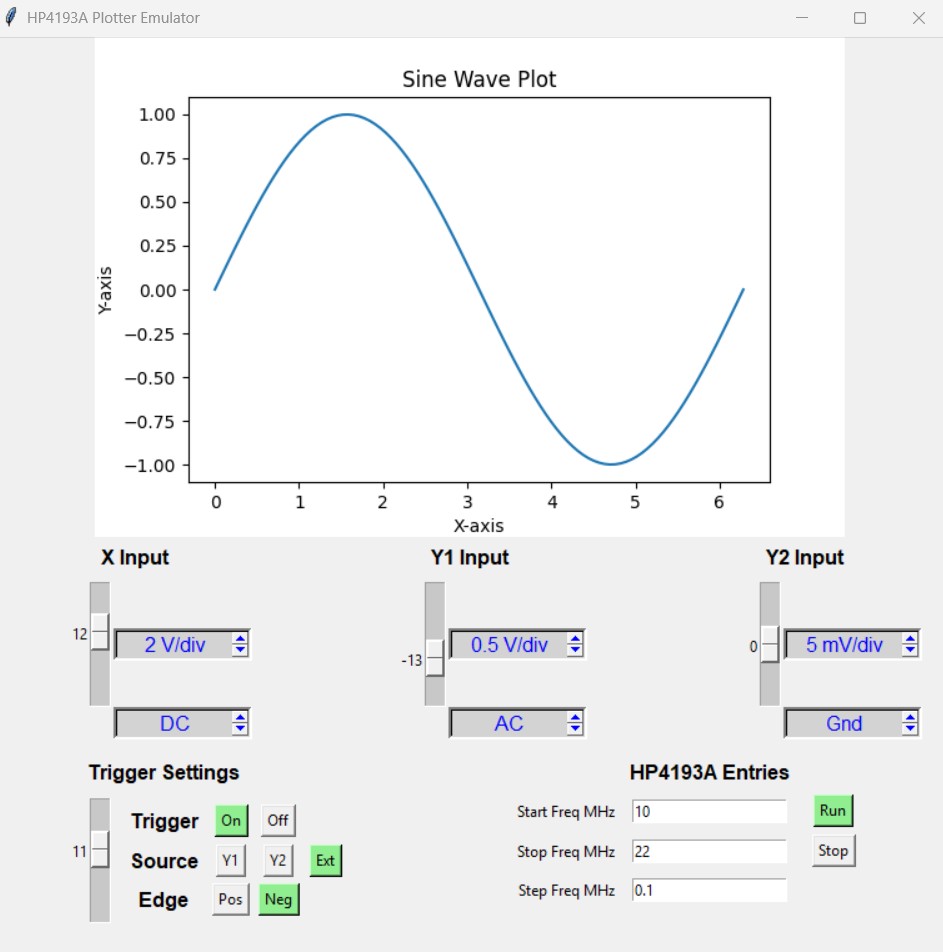
I re-wrote my code with Place instead of Grid and it is working, no errors, no warnings.
There is only a demo plot in the frame. I am moving on to getting live plotting working from my hardware. The buttons are in 4 sets and clicking one turns it green and turns the last one back to the default color.
I don’t think its worth pasting 278 lines of code here. The example demonstrates the problem.
For those curious see this link with thanks to Paul and Matthew.

Are you tied at the hip to Thonny? Have you tried using another IDE? How about PyCharm (Community Edition - its free)?

The above test script was executed using PyCharm v25, with Python v3.13 interpreter. This is what I observed when I ran the test script:

It runs fine with no errors. As I mentioned, there are two frames shown to mimic your application. Of course, I have only added three radiobuttons to the top frame, but you can easily add all of your other widgets just the same. Just make sure that they reference the frame in the code as I explained earlier.

Regarding PyCharm, it has a realy nice user interface. Big pluses:

  1. You can cofigure it to operate in dark mode which is great since it reduces strain on the eyes.
  2. Build-in PIP which makes downloading library packages a breeze.
  3. Built-in terminal so that you don’t have to open an external CMD window should you decide to do so.
  4. Built-in shell… can have shell, command prompt and editor open in parallel.
  5. Free :wink:
  6. Bulit-in type hints which eases and speeds up SW development.

Well, in any case, it appears like you are on your way.

Cheers!

Paul; so you don’t have the “Grid” problem I ran into? Perhaps you did not use the same modules as per my example above using Grid instead of Pack.
I read about Grid not being compatible with Pack. I found a solution. It should not be a problem with Matplotlib which is why I started this thread.
PyCharm sounds great but Thonny does most of that and I know it.
Anaconda, Spyder, VisualStudio, etc have all been suggested to me and I went down those rabbit holes. They are all too professional and not for me at this time.
I need simple, I’m not a programmer, I’m a hardware guy. Software is a necessary evil.
I make a choice and stick to it or I would never get anything done.
I use CCS C and MPLAB to program PICs. They are more versatile than Arduino which is more popular but won’t do everything a PIC does. Graphics on a PIC in C is difficult (for me) so I chose the Raspberry RPi and learned Python, Matplotlib, tkinter, etc. PICs do hardware better than a RPi so I use PICs and send the data to the RPi. Thonny works well on a PC and the RPi. Now that I’m getting data from a PIC I will move from PC to RPi so I don’t waste time trying to get things working on a PC which is not the end requirement. I use DipTrace to draw my schematics and lay out my circuit boards. I will be ordering them soon.
I switched from a lathe/mill to a 3D printer to make components for my ROV. When BlueRobotics came along I no longer needed to make my own thrusters… You can see I’m spread pretty thin.
I tried to recruit help to make this Plotter Emulator and got a lot of interest but no one wants to do the work. You have been more help than any of them, thank you. I tried Github to recruit help for my ROV project but it was more trouble than it was worth.
I have moved on to live plotting with Matplotlib’s animation module.
p.s. this project can be a DSO, a Data Plotter, an XY or XYY Plotter and can be customized for various uses. I intend to add a menu at some time. Some uses, for me, will be a display for a Heathkit IT1121 Curve Tracer, an HP4193A Vector Impedance Meter, and an HP4192A Impedance Analyzer.

No, no issues were observed. The code that I provided above is exactly what I used. Note all of the imported library packages. From the script that you provided.

I believe that you are correct that you cannot mix grid and pack together. However, I think that this applies if you are mixing them within the same space. A space being top window, subwindow, or frame. Note that above, we created two frames within the top window, each using grid. Had I attempted to use grid for one frame and pack for the other, then an error would have been generated. Remember that a frame is in itself a new “space”. This is why I am able to use the pack placement method “inside” for the placement of the radiobuttons. Had I attempted to also use grid for say another widget within the frame space, then an error would have been generated. Do you understand? When you create a new “space” (i.e., sub-window, frame, labelframe, etc.), you have carte blanch as to which placement method you would like to make use of for widgets placed within - so long as you don’t mix and match.

Yup, I have used these as well (for MSP430s and dsPICs) including DipTrace - light and easy to use. I have also used FreeCAD for designing my own board enclosures.

From what it appears, you definitely have your hands full. :slightly_smiling_face:

Understood, and useful. Thanks.