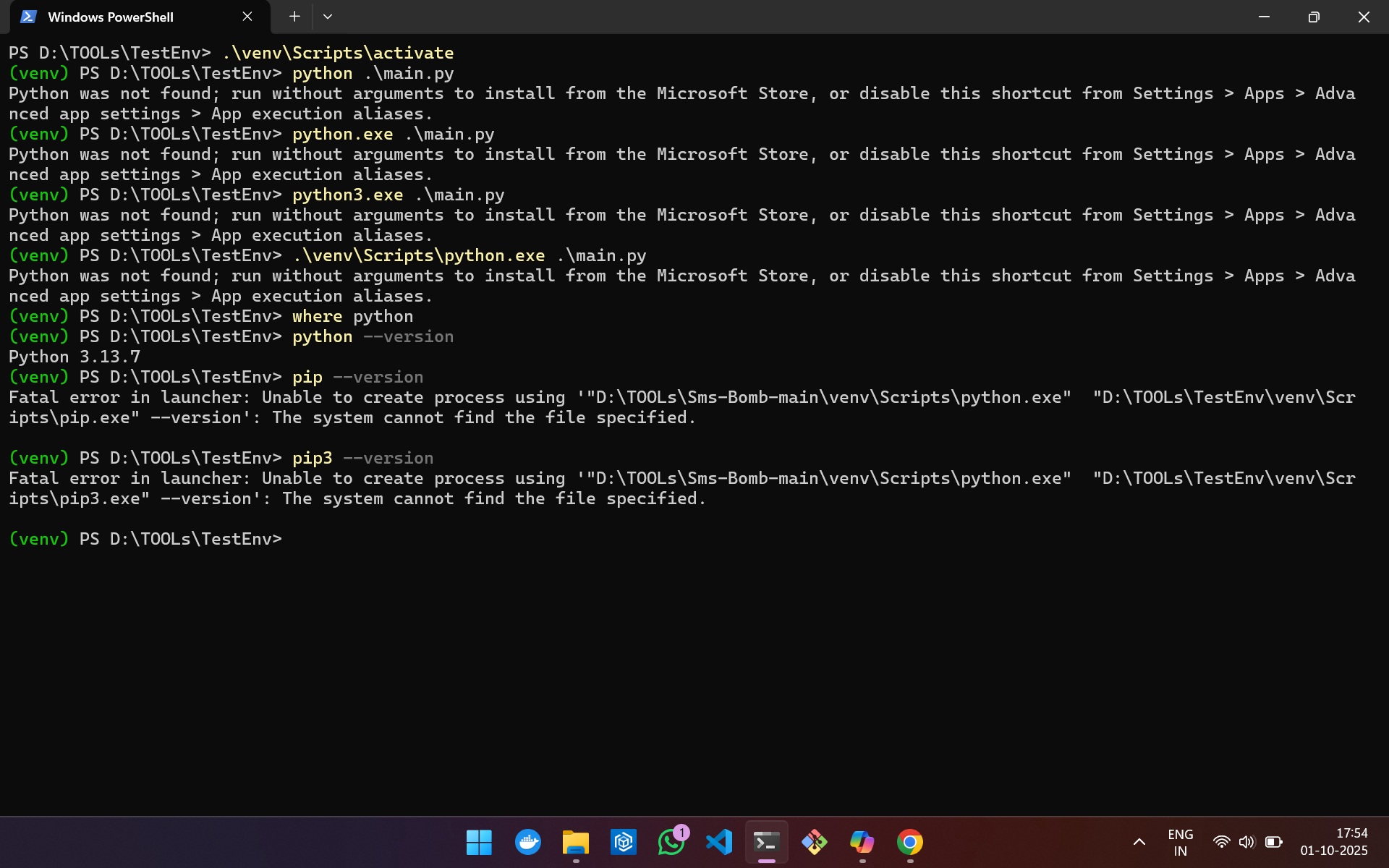
Maybe it’s a silly mistake, but I’m new 
Not sure it’s the issue or the only issue but the obvious thing to me is that you’re using bash’s activation script in powershell. Try:
. env\Scripts\activate.ps1
I’m on Windows 11 and wasn’t able to reproduce this issue, whether using pwsh (PowerShell 7.5.3) or Windows PowerShell (5.1). For example:
❯ uvx python@3.13 -m venv .venv
❯ .\.venv\Scripts\activate
❯ python -c 'import sys; print(sys.executable)'
<redacted>\.venv\Scripts\python.exe
I also tried the same steps with Python 3.14 and it worked just as expected.
Due to python not showing up when you do where python, I’d guess python isn’t on PATH (mainly because I had a similar error once). If you have multiple Python instalments, one has to be prioritised over the other, and perhaps one outside the venv is the one that’s supposed to run, but it can’t access the venv.
I don’t know if something like that could be the issue, but I’d suggest you check your PATH anyways, it might reveal the error.
Note that Python on Windows installs py.exe into C:\Windows, which is already on the PATH. So you should be able to run py main.py to run it. If you have multiple versions of Python installed, you can run py -3.14 main.py to run a particular version.
Hi Brénainn, thanks for your suggestion! I tried running:
. env\Scripts\activate.ps1
It does activate the virtual environment, but I’m still getting the same error when I try to run my script: I tried @AlSweigart ’s approach by ruuning via py and py.exe
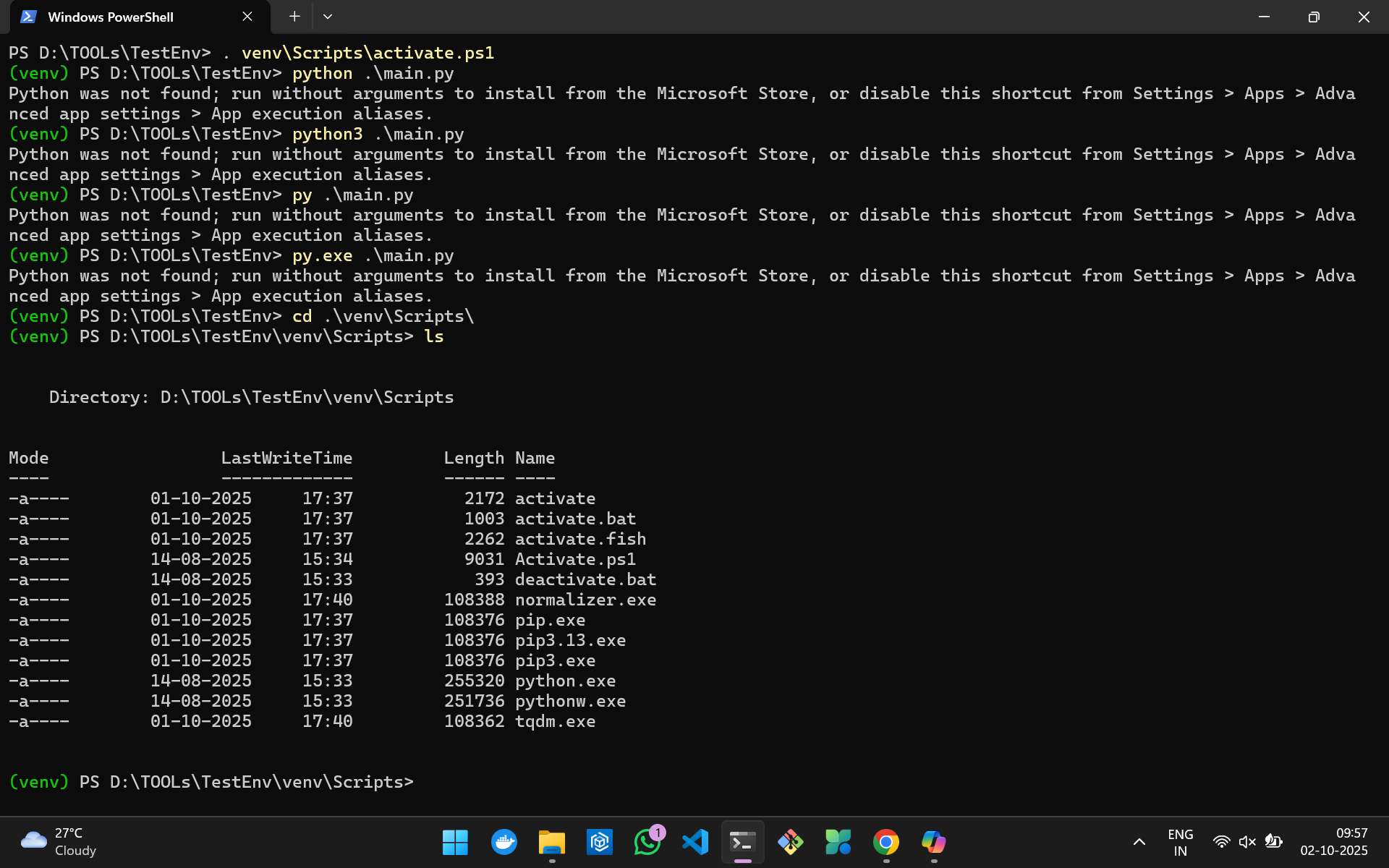
So unfortunately I’m getting the same error as before. Do you have any ideas what else I should check?
How did you create this env in the first place? I find it odd that you’d have been able to run python -m venv before activating the environment but not even be able to run python afterwards.
If you share the value of $env:path, that might give some clue.
I created the virtual environment initially with:
python -m venv venv
I also tried @Monarch’s approach using:
uvx python@3.13 -m venv .venv
but I’m still facing the same issue.
Here’s the current value of my PATH (from PowerShell):
(.venv) PS D:\TOOLs\TestEnv> $env:Path
D:\TOOLs\TestEnv\.venv\Scripts;C:\windows\system32;C:\windows;C:\windows\System32\Wbem;C:\windows\System32\WindowsPowerShell\v1.0\;C:\windows\System32\OpenSSH\;C:\Program Files\dotnet\;C:\Program Files\Docker\Docker\resources\bin;C:\Program Files\Git\cmd;C:\nodejs\;C:\Users\Suryakant\AppData\Local\Programs\Python\Python313\Scripts\;C:\Users\Suryakant\AppData\Local\Programs\Python\Python313\;C:\Users\Suryakant\AppData\Local\Microsoft\WindowsApps;C:\Users\Suryakant\AppData\Local\Programs\Microsoft VS Code\bin;C:\Users\Suryakant\AppData\Roaming\npm
(.venv) PS D:\TOOLs\TestEnv>
Do you see anything in PATH that might be causing Python to not be found?
I realized the main issue is that I installed Python via the Microsoft Store, which can cause PATH and virtual environment problems.
Even after creating the venv with
python -m venv venv
or
uvx python@3.13 -m venv .venv
running python inside the venv gives issues.
Apologies if this is obvious — “I’m learning Python — I just started. Thanks for the help!”
where python in your first post probably didn’t display anything because you got the Where-Object command from Powershell rather than the where.exe application.
You can try where.exe python instead.
The output of uv python list may also be helpful.
Hi everyone,
I just wanted to give an update: my Python program is running fine now. 
Earlier, I was getting this error in Windows 11 when running python --version:
Python was not found; run without arguments to install from the Microsoft Store, or disable this shortcut from Settings > Apps > Advanced app settings > App execution aliases.
The issue turned out to be related to the PATH setup. Python was added to the User PATH, but Windows was not picking it up correctly. I fixed it by adding Python to the System PATH instead.
After that, everything works as expected:
py --version
Python 3.13.7
and my test script runs successfully.
Thanks to everyone who helped! 
— Suryakant
That’s not obvious, and I wouldn’t have thought of that to be honest. Thanks for telling us what the issue was however, so we might learn from it for the future.